Read the real display arrangement before choosing fill, crop or span behaviour.
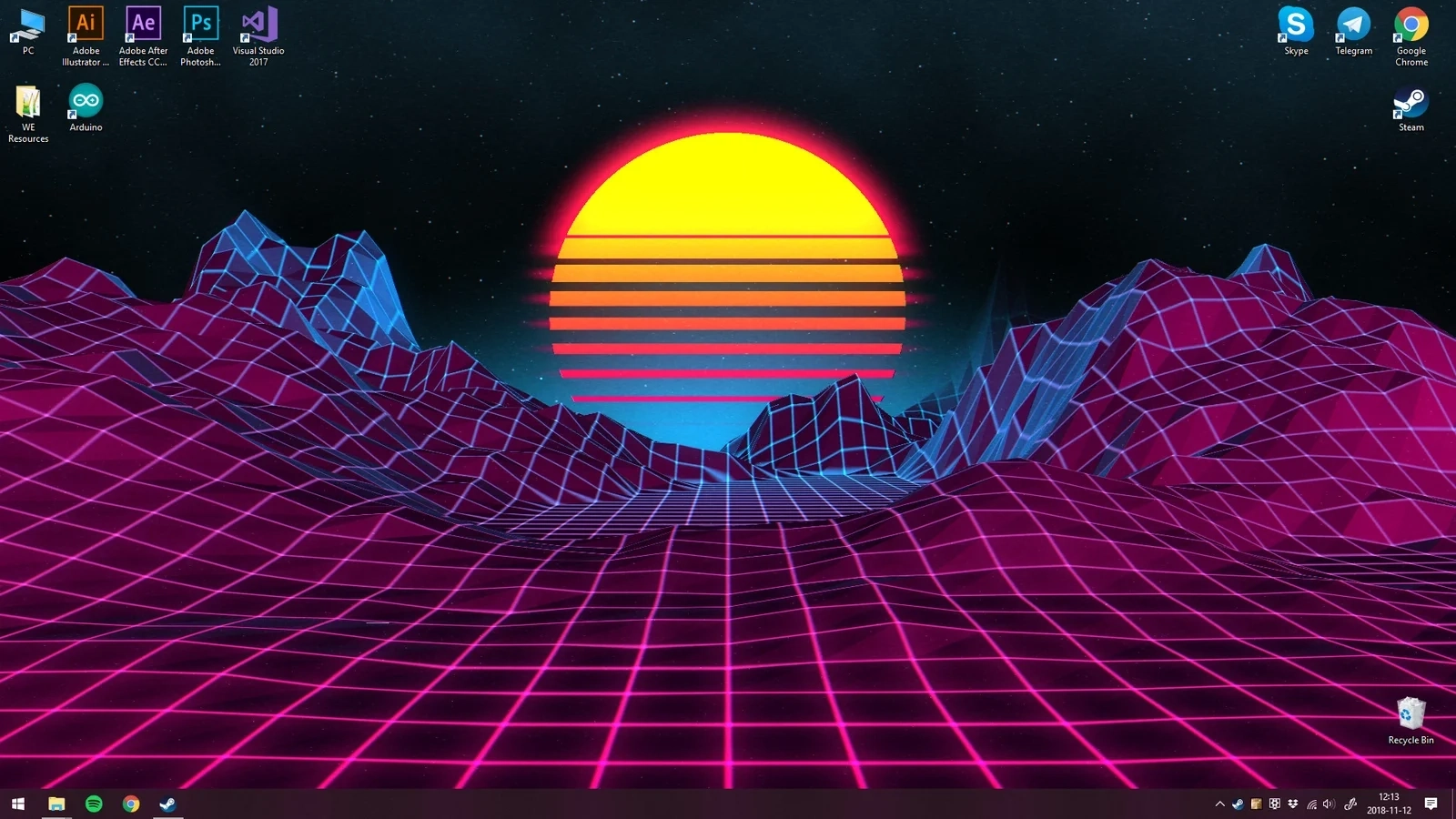
Confirm display identity and arrangement
Open Windows display settings and identify each monitor, its resolution and arrangement. The physical left-to-right order may differ from the configuration after reconnecting a display. Check this before moving wallpaper settings around. A correct image on the wrong logical display is an assignment issue, not necessarily a rendering failure.
Choose separate images or a span deliberately
Decide whether each display should have its own wallpaper or whether one composition should extend across the arrangement. Unequal resolutions and physical sizes complicate alignment. A panorama is not guaranteed to line up merely because its pixel width is large enough. Preview the important subject and horizon on the actual displays rather than judging only a small settings thumbnail.
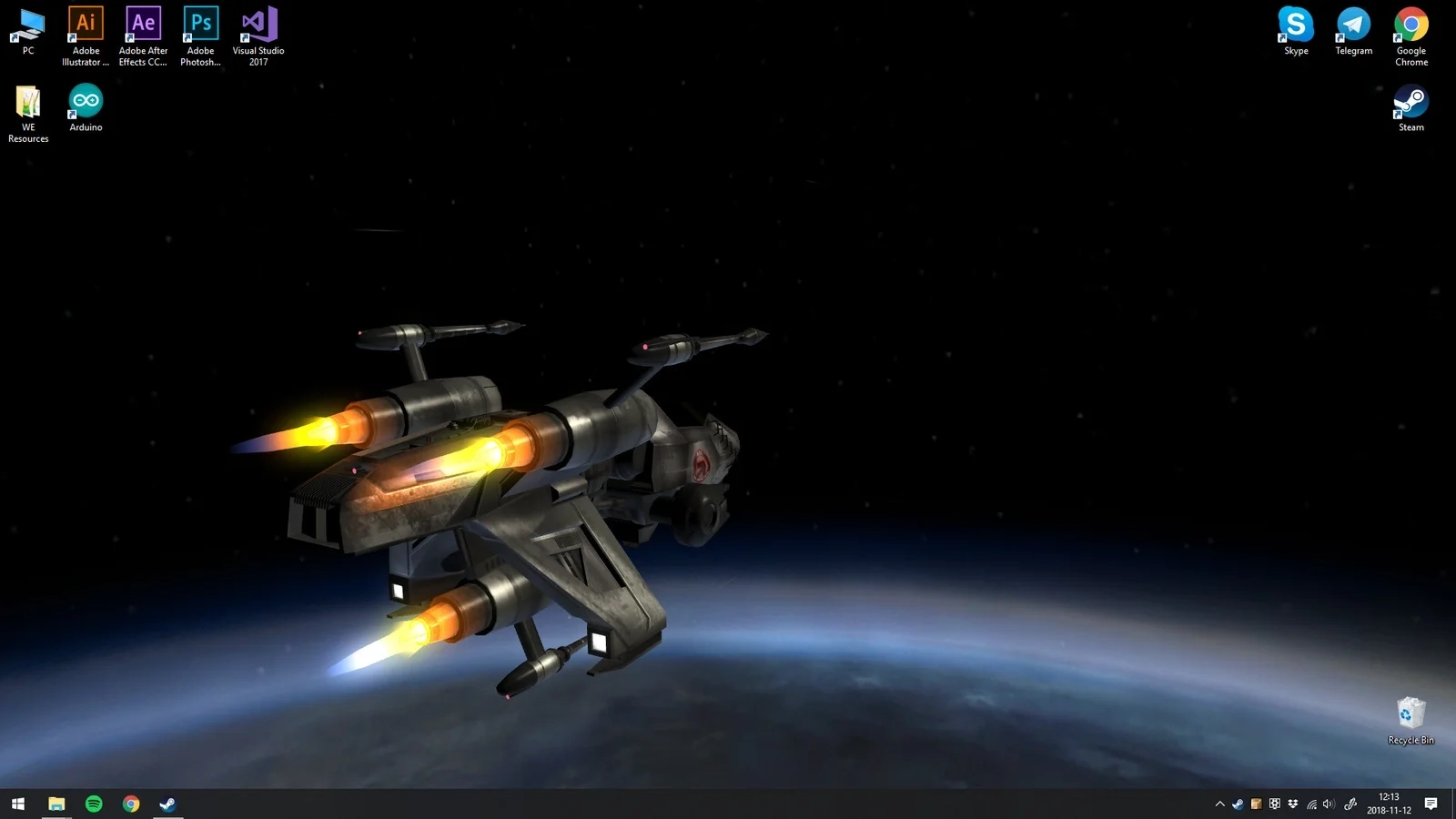
Inspect crop and scaling
Use the placement controls available for the selected wallpaper type. Filling a screen may crop an edge; fitting may leave unused space. Do not stretch a recognisable subject unintentionally. If monitors have different resolutions, consult the official multi-screen centring guide and compare the result in the final arrangement. Keep a known-good profile before experimenting if the application provides one.
Check after a display change
After reconnecting a monitor, verify Windows display identity, wallpaper assignment, framing and the application rule used when a program is fullscreen. Test one display before restoring the whole layout. This sequence is a diagnostic example, not a claim that all mismatched screens can be made physically seamless or that every wallpaper offers identical positioning controls.
Next time you play
- Identify displays in Windows.
- Choose independent or spanning placement.
- Inspect the real crop and alignment.
Official documentation and scope
- Desktops with Integrated and Dedicated GPU Perform Poorly ↗
- Wrong Refresh Rates of Monitors ↗
- Video freezes / stuttering / bad performance ↗
- Starting Wallpaper Engine with Windows ↗
Settings checked against official Wallpaper Engine documentation on 17 November 2026. Instructions concern the Windows desktop app; menu labels can vary by language and release. Comparisons are editorial procedures, not hardware benchmarks.